The universal premium theme for OpenCart 4.x and 3.0.x: one modern classic design for every store with 12 colour schemes, your own colours on top and three layouts; mega menu with icons, labels and banners, a catalog menu, promo cells inside the product grid, product of the day with a countdown, promotions with days left, category mosaic, show more, active filter chips, quick view, product video, trust block and a sticky Buy bar. Events only, no core changes.
On saleVersion 1.0.0Compatible with OpenCart 4.0.2.0 – 4.1.0.4, 3.0.x No core file edits
Built forOpenCart
One design, 12 colour schemes, and your own colours on top with readable text by contrast1 of 15
The universal premium theme for OpenCart 4.x and 3.0.x: one modern classic design for every store with 12 colour schemes, your own colours on top and three layouts; mega menu with icons, labels and banners, a catalog menu, promo cells inside the product grid, product of the day with a countdown, promotions with days left, category mosaic, show more, active filter chips, quick view, product video, trust block and a sticky Buy bar. Events only, no core changes.
OpenCart 4.0.2.0 - 4.1.0.4, 3.0.x
Overview
Keystone is the universal premium theme of Kavio Labs for OpenCart 4.x and 3.0.x: one modern classic design that fits every store, from electronics and fashion to home, beauty, sports or food. You give it your look with one of 12 colour schemes, your own colours on top and one of 3 layouts; the merchandising tools (mega menu with icons and banners, promo cells inside the product grid, product of the day, promotions with days left) make the store feel alive.
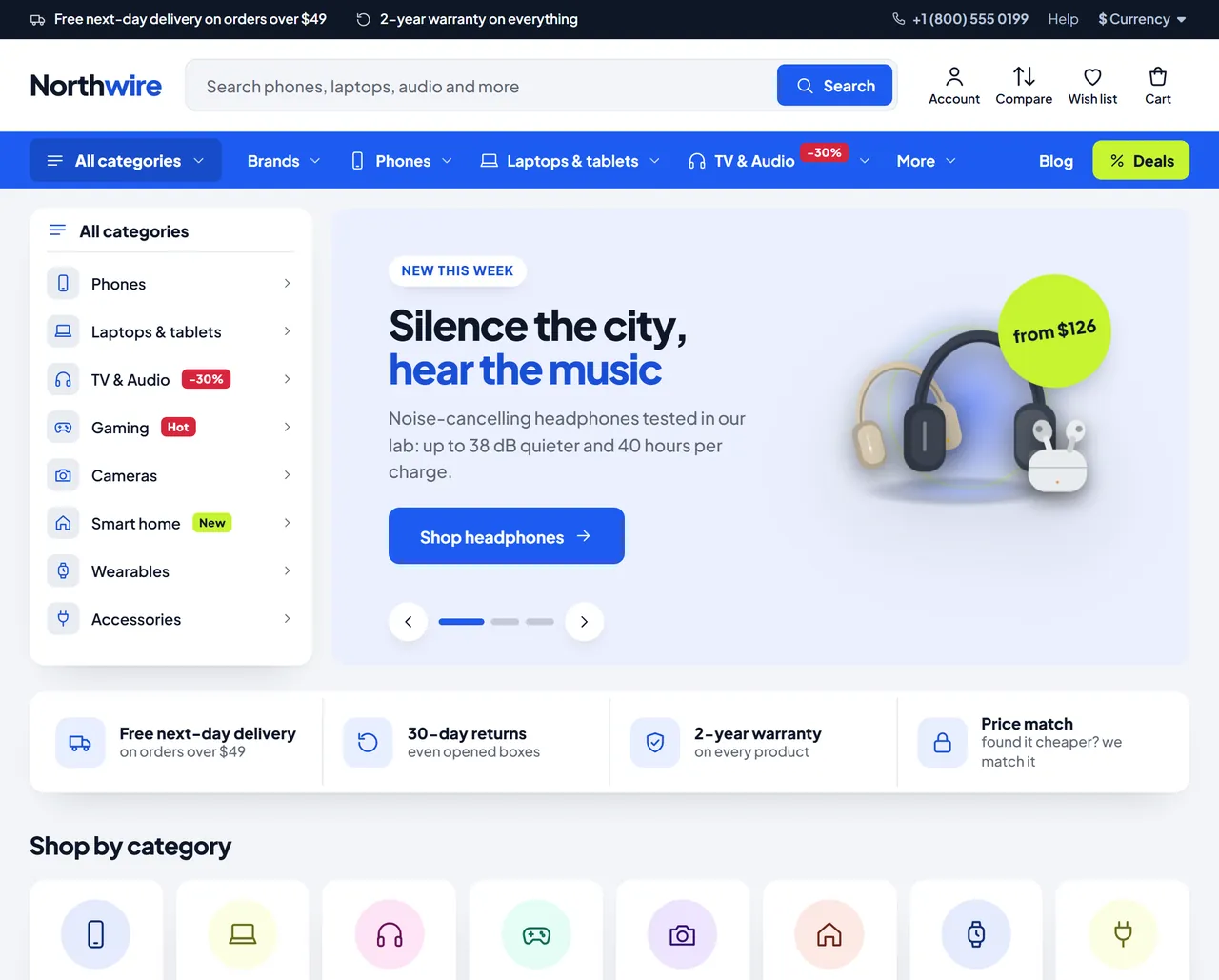
Keystone home page, Market layout, Ocean scheme
What you get
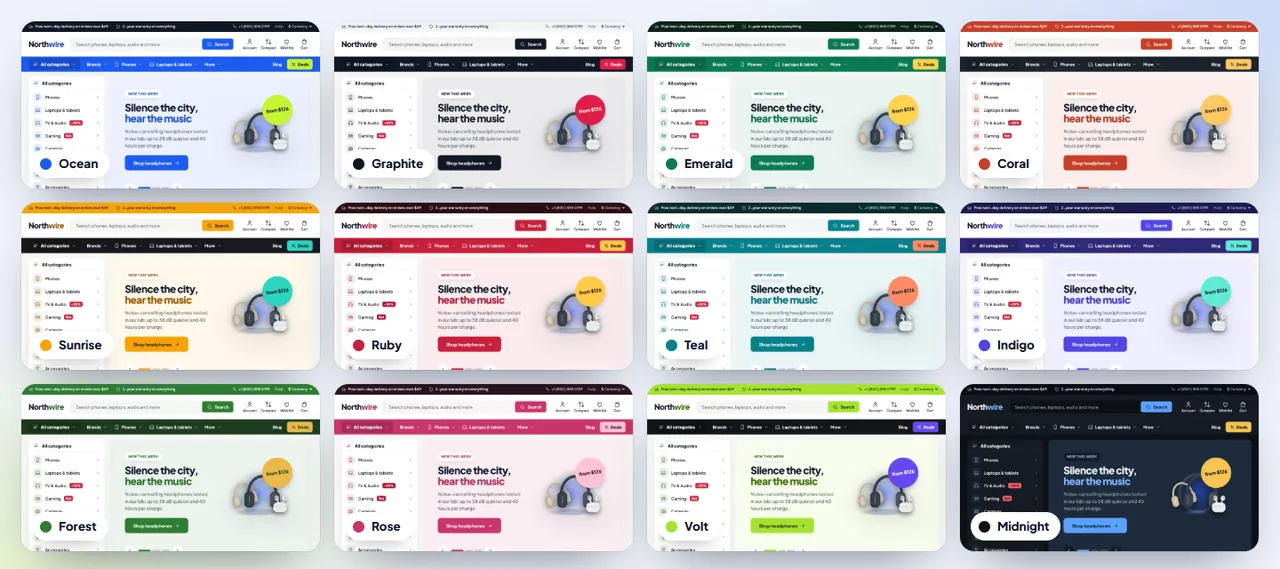
One design, 12 colour schemes. Ocean, Graphite, Emerald, Coral, Sunrise, Ruby, Teal, Indigo, Forest, Rose, Volt and the dark Midnight scheme. On top of a scheme you can set eight colours of your own (buttons, links, menu bar, top bar, footer, page, highlight, sale badge) with a live preview in the admin. Text on every coloured surface turns white or dark by contrast, and link colours are darkened until they are easy to read.
Three layouts.Market (catalog menu standing open next to the hero, wide search, phone number), Classic (logo, search and icons in one row, a slider with two side banners) and Showcase (centered logo, full-width hero). Three corner styles: soft, sharp, round.
Header. Top bar with up to three messages, the phone number and opening hours; sticky header; live search with product images, prices and categories; account, compare, wish list and mini cart.
Mega menu and catalog menu. Your top categories in a coloured menu bar with icons and small labels (New, Hot, -30%). Every mega panel shows subcategory columns (three levels), top brands, popular products and a banner of your own (or the best deal of the category). A catalog menu button opens every category with its icon and flyouts. Items that do not fit go into a More panel.
Home sections, each for all devices, desktop only or phones only, in any order: hero slider with price badges and side banners, promise row, category icons, product of the day with a countdown and a sold / available bar next to deals that end soon, tabbed product rails (best sellers, new arrivals, on sale), category mosaic (normal, wide and tall tiles), promotions carousel with days left, banners, brands with logos, blog and news (OpenCart 4.1 blog or your own stories), customer reviews, newsletter band.
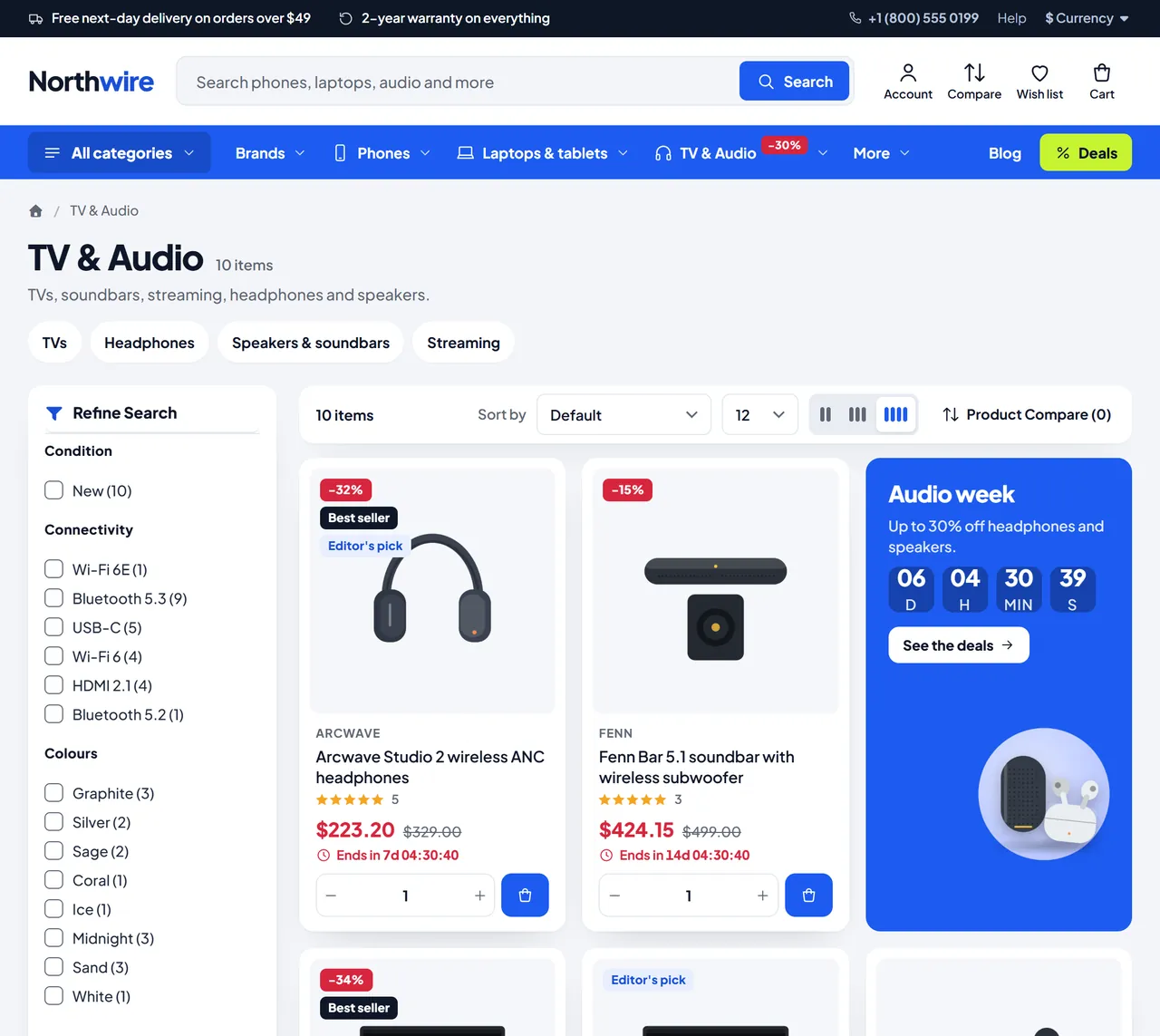
Category pages. Subcategory chips or tiles, promo cells inside the product grid (banner, countdown promo, video or article that opens in a dialog; one or two cells wide; per category), AJAX filters and sorting, active filter chips with one-click remove, Show more or loading while scrolling, a 2 to 5 per row switch, and a Filter and Sort bar on phones.
Product cards.Stickers (sale %, new, best seller, your own), colour swatches, sizes, rating, second image on hover, quick view, compare, wish list, a quantity stepper with Add to cart, offer countdown and stock line. Lazy-loaded images.
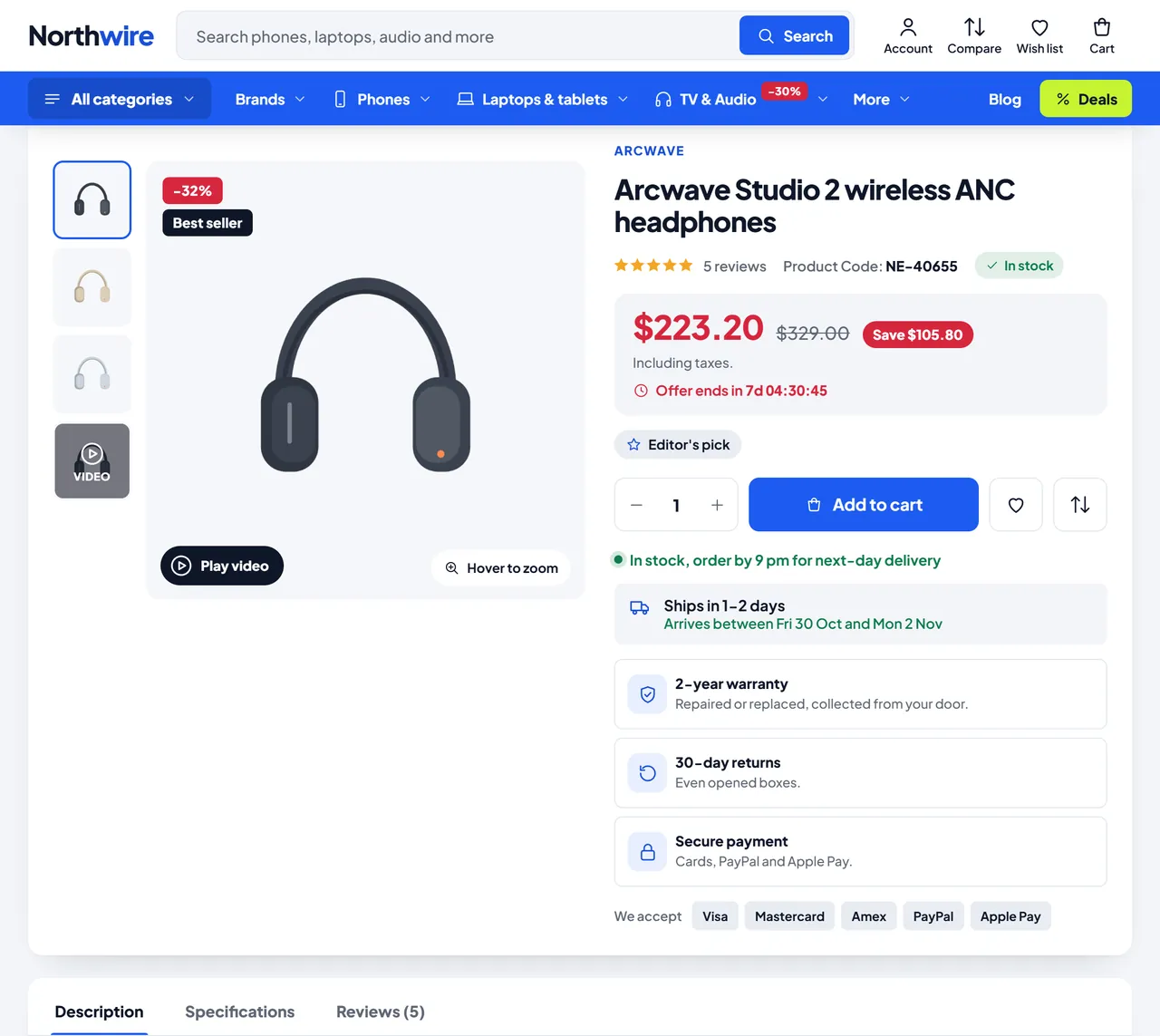
Product page. Gallery with hover zoom and a product video, a price box with the saving and the offer countdown, colour swatches and option chips with live prices, delivery dates, a trust block, payment chips, tabs, buy together and a sticky Buy bar.
Brand pages with the logo and product count, a brands A-Z panel in the menu.
Structured data (JSON-LD): product, offer, rating and breadcrumbs, plus the store and its search box on the home page.
Safe and fast. Events only: no core file changes, no OCMOD. One self-hosted font (Plus Jakarta Sans, SIL Open Font License 1.1), one stylesheet and one script, no jQuery plugins, no font or icon CDNs. A licence problem never blocks the store or the admin panel.
The 12 colour schemesCategory page with a promo cell and filtersProduct page with the video, the price box and the trust block
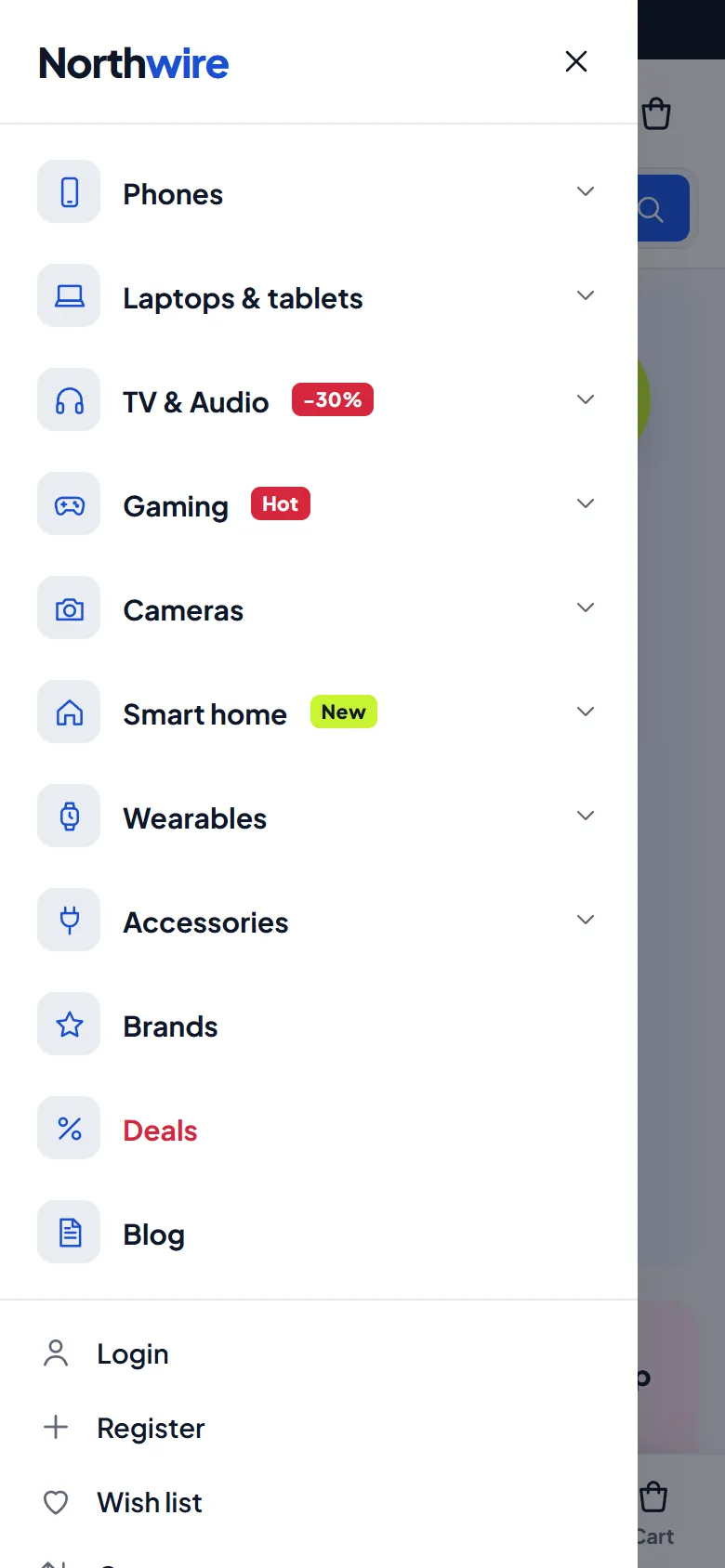
On a phone the menu becomes a drawer with category icons, a bottom bar gives Home, Catalog, Search, Saved and Cart, category pages get a Filter and Sort bar and product pages a sticky Buy bar.
Keystone on a phone: the drawer menu
Works with
Other extensions keep working: Keystone keeps the core ids of the product form and the mini cart, buttons or panels that other extensions add to the product page appear under Add to cart, and notes other extensions add inside a price (for example the lowest price of the last 30 days) are styled. Keystone reads standard OpenCart data only (categories, manufacturers, filters, attributes, options, specials, related products, information pages, orders for the best seller sticker) and never writes to your catalogue.
Versions
OpenCart 4.0.2.0 to 4.1.x
OpenCart 3.0.3.x to 3.0.5.x
Package
kv_theme_keystone.ocmod.zip
kv_theme_keystone-oc3.ocmod.zip
Framework
Bootstrap 5
Bootstrap 3
Keystone templates
header, footer, home, mini cart, product card, category, brand page, product page, related products
One licence covers both packages, every scheme and layout. The first 14 days are a trial. Without a valid licence the store keeps working and the theme settings page shows a reminder.
Installation
OpenCart 4.x
Go to Extensions > Installer and upload kv_theme_keystone.ocmod.zip. Click Install (the green + button) next to it.
Go to Extensions > Extensions, choose the type Themes, and click Install next to Keystone Universal Theme by Kavio Labs.
Click Edit, check that Status is on, pick a Colour scheme and a Layout, and save.
Go to System > Settings, edit your store, and on the General tab set Theme to Keystone Universal Theme by Kavio Labs. Save.
OpenCart 4 has no theme folders. Keystone is a theme extension: it swaps in its own templates while it is the store theme and switched on. Switch the store back to Default to return to the stock look at any time. The settings page tells you whether Keystone is the active theme.
Recommended image sizes (System > Settings > Image): product card 600 x 600, product page 1000 x 1000, popup 1400 x 1400, cart 140 x 140, category 600 x 600. Square product images on a plain or transparent background look best on the light image wells.
OpenCart 3.0.x
Go to Extensions > Installer and upload kv_theme_keystone-oc3.ocmod.zip.
Go to Extensions > Modifications and click Refresh (the blue button).
Go to Extensions > Extensions, choose Themes, click Install next to Keystone Universal Theme by Kavio Labs, then Edit, check Status, pick a scheme and a layout and save.
Go to System > Settings, edit your store, open the General tab and set Theme to Keystone Universal Theme by Kavio Labs. Save.
On OpenCart 3 the image sizes and the number of products per page for the theme are on the Listing & images tab of the theme settings.
Set up your store in six steps
Look. On the Design tab pick a colour scheme, then (optional) your own colours, the layout and the corners. The preview next to the schemes shows the result before you save.
Menu. Your top categories become the menu bar, the catalog menu and the category icons (OpenCart 3: tick Top on the categories you want in the menu bar). On the Header & menu tab add a row per top category in Icons, labels and banners: the category id, an icon, an optional label (New, -20%) and an optional banner image, title, text and link for its mega panel.
Hero. On the Home page tab add one to three slides: a title (wrap words in *stars* to highlight them), a text, an image path below image/ (a cut-out product image on a transparent background works best), a button with a link and an optional price badge (from $126). The Market and Classic layouts also take two side banners.
Merchandising. On the Merchandising tab add your category mosaic tiles and running promotions (with an end date: the card shows the days left and hides itself after it). The product of the day and the deals come from your special prices; set end dates on specials to get countdowns.
Category pages. On the Category pages tab add promo cells: the categories they show in (empty = all), the position in the grid, one or two cells wide, and the type: a banner, a countdown promo (with an end date), a video (YouTube, Vimeo or an .mp4 / .webm link) or an article (an information page that opens in a dialog). Choose Show more, Load more while scrolling or page numbers.
Product data. Keystone reads your normal catalogue data:
Options: radio or select options named Colour, Color or Finish show as round swatches (the option value image, or a colour from the value name or a #hex code in it); options named Size, Storage, Capacity, Memory or Length show as chips with the price change.
Special prices with an end date give countdowns on cards, the price box and the deals.
Second image: the first additional image of a product appears when the pointer is over the card.
Manufacturers (with their logo image) fill the brand line on cards, the brands section, the brand pages and the brands in the mega panels.
Related products without required options fill Buy together.
Attributes (names are settings): Badges (your own stickers, Editor's pick, Eco), Video (a YouTube, Vimeo or video file link: the video joins the gallery), Delivery time (Ships in 1-2 days becomes delivery dates), an In the box tab and an optional content attribute for the unit price (500 g, 6 pcs).
Filters: add filter groups (Catalog > Filters), assign them to products and categories, and put the core Filter module in the left column of the Category layout (Design > Layouts). Keystone shows it as a clean sidebar, a drawer on phones, and active filter chips above the grid.
Update
Upload the new package the same way (and refresh modifications on OpenCart 3). Your settings are kept in the store settings.
Uninstall
Switch the store theme back to Default, then uninstall Keystone from Extensions > Extensions > Themes. The theme settings are removed; your catalogue is untouched.
Configuration
Open Extensions > Extensions > Themes > Keystone > Edit. Every storefront text you can change is on one of these tabs. A section that is switched off or has no content is not shown. Settings are per store.
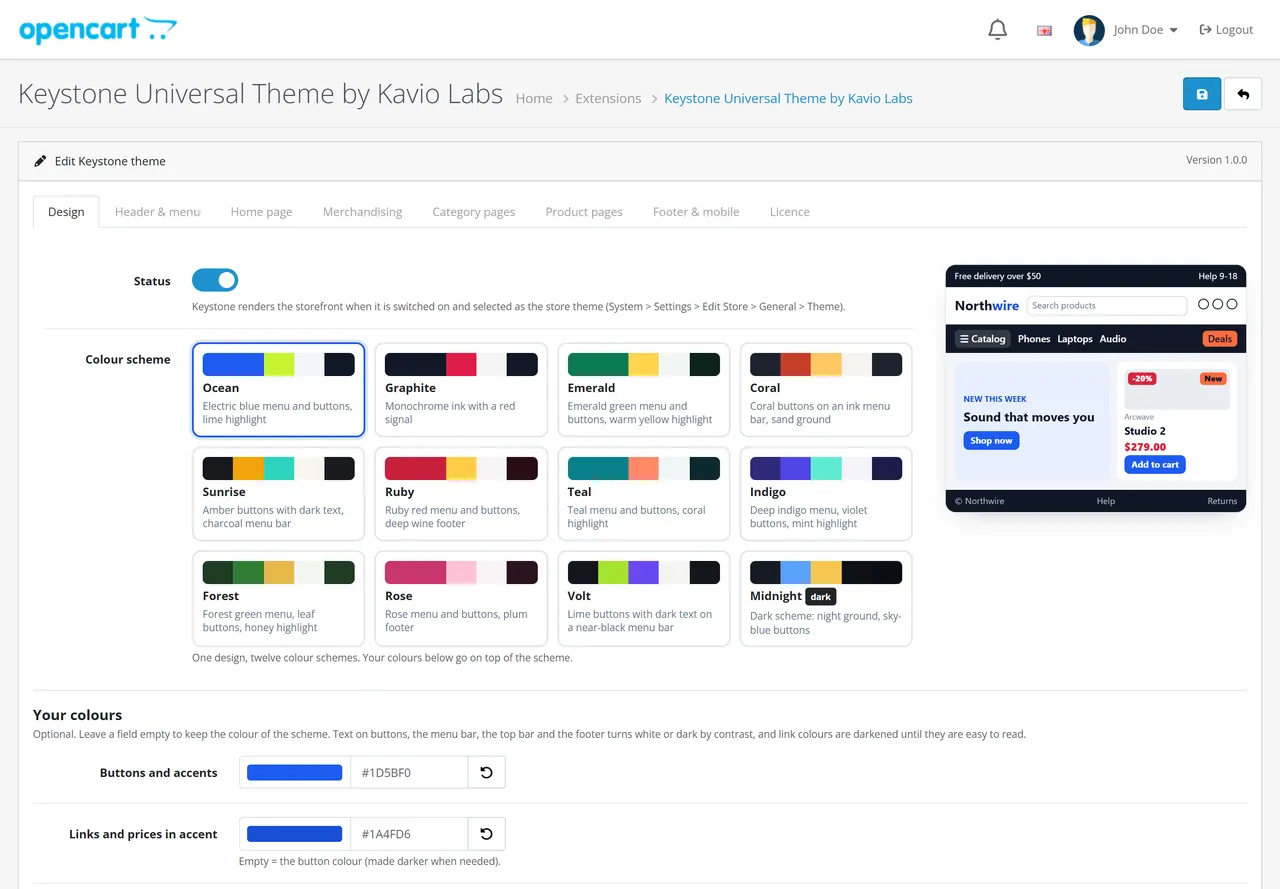
Keystone theme settings: colour schemes and the live preview
Design
Status and Colour scheme: Ocean, Graphite, Emerald, Coral, Sunrise, Ruby, Teal, Indigo, Forest, Rose, Volt, Midnight (dark).
Your colours (optional): buttons and accents, links and prices in accent, menu bar, top bar, footer, page background, highlight (new badges, labels), sale badge. Empty = the colour of the scheme. The text on these colours is chosen by contrast; a dark page colour switches the store to dark surfaces.
Layout: Market, Classic or Showcase. Corners: soft (10 px), sharp (2 px) or round (pill buttons).
Text logo: shown when the store has no logo image; wrap a part in *stars* to colour it (North*wire*).
Header & menu
Top bar with three messages (they rotate on phones), Phone number and Opening hours; Sticky header; Search placeholder.
Menu bar: number of categories (the rest goes into More), Catalog menu (label, number of categories), Brands item label (a brands A-Z panel), Deals link label (the Specials page), an Extra link (for example the blog).
Icons, labels and banners: one row per top category: icon (50+ icons for every kind of shop), label and its colour (accent, sale, highlight, dark), banner image, title, text and link for the mega panel. Without a banner the panel shows the best deal of the category.
Home page
Keystone home sections on or off (off = only the modules of the Home layout), Section order (hero, usp, cats, deal, tabs, mosaic, promos, banners, brands, blog, reviews).
Every section has Show and Show on (all devices, desktop and tablet only, phones only).
Hero: seconds per slide (autoplay pauses on hover, on focus and for visitors who prefer reduced motion), three slides (label, title, text, image, button, link, price badge) and two side banners.
Promise row: up to four bold part|small part pairs separated by ;.
Category icons: title, category ids (empty = top categories), number.
Product of the day and deals: titles, the product of the day (empty = the product on special with the biggest saving), deal product ids (empty = products on special, ending soonest first), number of deals.
Product tabs: three tabs (best sellers, latest, on sale by default) with optional product id lists and the number of products per tab.
Merchandising
Category mosaic: tiles with a title, text, image, link, size (normal, wide, tall) and colour tone.
Promotions carousel: cards with a title, text, badge, image, link and end date (YYYY-MM-DD); "N days left" is shown and the card hides itself after the date.
Banners: three image banners with label, title, text, button and link.
Brands: title and number (your manufacturers with logos).
Blog and news: the latest OpenCart 4.1 blog articles, or three stories of your own (label, title, text, link, image).
Customer reviews: an average card and up to three quotes (Quote|Name|Product). Write only real figures and quotes.
Category pages
Pagination: Show more button, load more while scrolling, or page numbers. AJAX filters and sorting, Active filter chips, Subcategories (chips, tiles, hidden), Products per row (3, 4 or 5 on wide screens).
Promo cells: categories (empty = every category page; a category also covers its subcategories), position, size (1 or 2 cells), type (banner, countdown promo, video, article), title, text, image, button, link, end date, video URL, information page id, colour. Cells show on the first page of a category.
Product cards: brand line, quantity and Add to cart, second image on hover, quick view, compare, live search.
Stickers: discount, new (days), best seller (top N of the last 90 days), your own stickers attribute, low stock line.
Product pages
Hover zoom, Sticky Buy bar, Structured data, Video attribute, Trust block (up to four lines with an icon, title and text), Buy together and its title.
Product data: colour and chip option names, size guide link, delivery time attribute and the line without one, extra tab attributes, notice attribute, unit price attribute, range and colour attributes (sell each colour as its own product), in-stock line.
Footer & mobile
Newsletter band (title, text, button), footer about text, payment chips (plain text, no logos), social links (Name|URL per line, shown as text links), Mobile bottom bar and Back to top button.
Licence
The Licence tab takes the key from your Kavio Labs account and shows the licence status. The theme keeps working without a key.
FAQ
Does Keystone fit my kind of shop?
Yes. Keystone is one neutral, modern design made for every sector: electronics, fashion, home, beauty, sports, toys, food, tools. The demo shows an electronics store; the colour schemes, your own colours, the icons for 50+ kinds of shops and the layouts let you make it yours.
Can I change the colour scheme or the layout later?
Yes, any time. They only change the look. Your products, categories, texts and images stay as they are.
Will my own colours stay readable?
Yes. Keystone picks white or dark text for every coloured surface by contrast and darkens link colours until they reach a contrast of 4.5:1 on their ground.
Does Keystone import the demo store?
No. The demo store in the screenshots ("Northwire") is fictional and uses our own generated illustrations of invented brands; it is not part of the package. The schemes, layouts and features are.
Where do the menu and the category icons come from?
From your top categories (OpenCart 3: categories with Top ticked). Icons, labels and mega panel banners are set per category on the Header & menu tab; without an icon a category shows a tag icon (or its image in the category icons section).
How do promo cells work?
You add them on the Category pages tab. Each cell takes a place in the product grid (position 1 = the first place) on the category pages you choose, one or two cells wide. Countdown cells need an end date and disappear after it. Video cells play YouTube (privacy-enhanced mode), Vimeo (do not track) or your own video file in a dialog; article cells open an information page in a dialog.
Where does the product of the day come from?
From the Product of the day setting, or, when it is empty, the product on special with the biggest saving. Its countdown runs to the end date of the special price, else to midnight. The sold bar counts the orders of the last 30 days and only shows when there are any.
How is "Best seller" decided?
The products sold most in the last 90 days (orders with a status), top N as set on the Category pages tab.
Can I hide a home section on phones?
Yes. Every section has a Show on setting: all devices, desktop and tablet only, or phones only.
Does Show more work with search engines?
Yes. The page numbers stay under the button as normal links; the button and scroll loading only add the next page to the grid.
Does it slow my store down?
Keystone adds one stylesheet, one script and one self-hosted font. Images below the first screen load lazily. The data it reads is cached per request.
Does Keystone change core files?
No. It uses OpenCart events only (no core changes, no OCMOD). Uninstalling it leaves your store and catalogue as they were.
Server-side tracking for OpenCart 4.x and 3.0.x: purchases, refunds, add to cart, checkout, product views and leads go from your server to the free official GA4 Measurement Protocol, Meta Conversions API and TikTok Events API, deduplicated with the browser pixels through shared event ids. Consent-aware, SHA-256 hashed customer data, order status mapping, queue with retries, test mode and an event log. No paid relay, events only, no OCMOD.
The multipurpose flagship theme for OpenCart 4.x and 3.0.x: five ready store styles (Fashion, Electronics, Home, Beauty, Grocery) switchable from the admin in one click, three header and two footer layouts, four hero layouts, a mega menu, live search, AJAX filters, quick view, wish list and compare, a sticky add-to-cart bar and a mobile tab bar. No core changes.