
Sell by Weight & Length
Extension · v1.0.1Sell products by weight, length, area or volume with decimal quantities, unit prices, step/min/max and a live price on the product page.
- 4.1.0.x
- 4.0.2.x
- 3.0.x
from$69Buy
by Kavio Labs · for OpenCart 4.x and 3.0.x
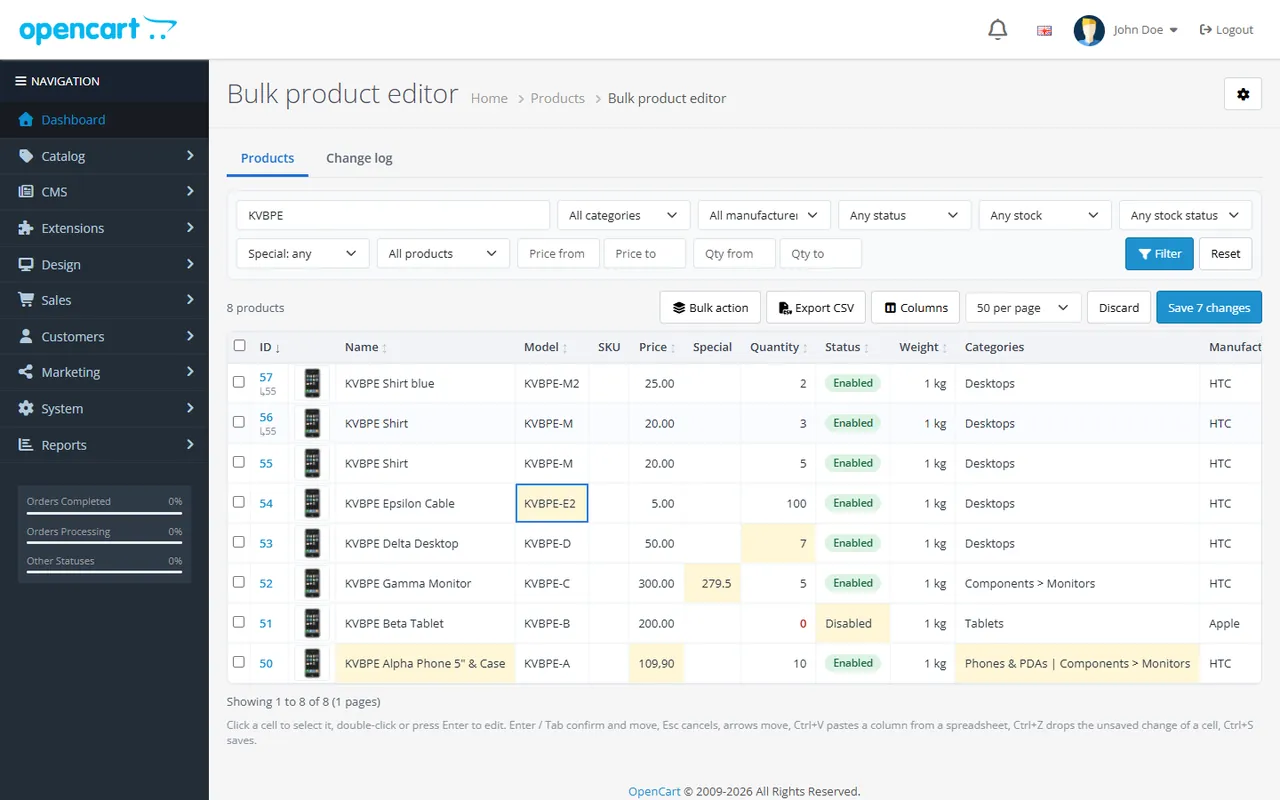
Spreadsheet-style product grid with inline editing, filters, bulk price, special, stock, status and category changes with a preview, a change log with undo and CSV export (OpenCart 4.x and 3.0.x).
Spreadsheet-style product grid with inline editing, filters, bulk price, special, stock, status and category changes with a preview, a change log with undo and CSV export (OpenCart 4.x and 3.0.x).
OpenCart 4.0.2.0 - 4.1.0.4, 3.0.3.x - 3.0.5.x
Edit your whole catalogue in a fast, spreadsheet-style grid in the OpenCart admin. Change prices, specials, stock, status, model, SKU, weight, categories, manufacturer and option values right in the cells, then save them all at once. For bigger jobs, bulk actions change hundreds or thousands of products with a preview first. Every change goes into a change log that you can undo, and the filtered list exports to CSV.
| OpenCart 4 | OpenCart 3 | |
|---|---|---|
| Versions | 4.0.2.0 – 4.1.x | 3.0.3.x – 3.0.5.x |
| Package | kv_bulk_product_editor.ocmod.zip | kv_bulk_product_editor-oc3.ocmod.zip |
| PHP | as required by OpenCart (8.1+ for 4.1.x) | as required by OpenCart (8.1+ for 3.0.5.x); the extension itself runs on PHP 7.4+ |
| Browser | any current browser (the grid has no external scripts) | same |
kv_bulk_product_editor.ocmod.zip, then click Install next to it.kv_bulk_product_editor-oc3.ocmod.zip.extension/kv_bulk_product_editor/module/kv_bulk_product_editor on OpenCart 4, extension/module/kv_bulk_product_editor on OpenCart 3) and for catalog/product: see Configuration.OpenCart 4: Extensions > Installer, uninstall and delete the old package, upload and install the new one. OpenCart 3: upload the new package over the old one and refresh the modifications. Settings and the change log stay as long as you do not uninstall the module.
Extensions > Extensions > Modules > Bulk Product Editor > Uninstall removes the events, the settings and the change log tables. Your products keep every change you made; only the undo history is gone.
Open Extensions > Extensions > Modules > Bulk Product Editor > Edit.
| Setting | Default | What it does |
|---|---|---|
| Menu item | Enabled | Shows Catalog > Bulk product editor in the admin menu. |
| Default page size | 50 per page | Products per grid page (25, 50, 100 or 250). Each user can change it in the grid; the browser remembers the choice. |
| Products per step | 200 | Bulk actions and undo run in steps of this many products (20 – 1000), so even very large catalogues finish without a timeout. Lower it on slow or shared servers. |
| Keep the change log for (days) | 90 | Older entries are deleted and can no longer be undone. |
| Product thumbnails | Yes | Shows a small product image in the grid. Switch off for the fastest grid on very slow image storage. |
| License key | The key from your Kavio Labs account. Check now verifies it right away. |

The grid follows OpenCart's user group permissions (System > Users > User Groups):
| To | Needs |
|---|---|
| Open the grid, filter, export CSV, read the change log | Access permission for the extension and for catalog/product |
| Save inline changes, run bulk actions, undo | Modify permission for the extension and for catalog/product |
Users with access only see the grid read-only with a note.
Without a key the extension runs as a 14-day trial with every feature. After the trial, without a valid license, the grid, filters, CSV export, the change log and undo keep working; saving changes and starting new bulk actions are disabled until a license key is entered. Your products are never changed by the license check.
Open Catalog > Bulk product editor. The page has two tabs: Products (the grid) and Change log.
More keys: the arrow keys move between cells, Ctrl+Z drops the unsaved change of the selected cell.
Paste from a spreadsheet: select the first cell and press Ctrl+V. A column copied from Excel or Google Sheets fills the rows below; several columns fill the cells to the right. Status accepts Enabled / Disabled (or yes / no, 1 / 0); manufacturer and out-of-stock status accept the name; categories accept names or IDs separated by |.
| Column | How to edit |
|---|---|
| Name, model, SKU | Text. Name and model cannot be empty. |
| Price, weight | A number; 12.50, 12,50 and 1,234.50 all work. Cannot be negative. The weight unit of each product is shown and kept. |
| Special | The price of the special shown in the grid: the active special of the default customer group (else its first one). Type a new price to change it (it becomes a fixed price) or empty the cell to remove that special. A product without a special gets one for the default customer group without dates. Specials of other customer groups stay; use a bulk action to manage them. |
| Quantity | A whole number (may be negative). Out-of-stock quantities are shown in red. |
| Status, manufacturer, out-of-stock status | A list opens on click. |
| Categories | A small editor opens on click: search and tick the categories, then Apply. |
| Options | Products with option values show "N values, qty X". Click to edit the quantity, price prefix (+ / −) and price change of each option value. |
Saving: each changed value is written and the grid shows what was really saved:
After every save a message offers Undo.
| Field | Actions |
|---|---|
| Price | Set to; increase by; decrease by (% or amount); rounding: to cents, whole numbers, end in .99, end in .95, none |
| Special | Set a special price for a customer group: % off the price, amount off the price or a fixed price; rounding; optional start and end date; Replace the existing specials of this customer group (on by default). Remove specials of one customer group or of all groups. A special that would not be lower than the price is skipped. |
| Quantity | Set to; increase by; decrease by |
| Weight | Set to; increase by; decrease by (% or amount); whole numbers |
| Status, manufacturer, out-of-stock status | Set to |
| Categories | Add to categories; remove from categories; move to categories (the products end up in exactly the chosen ones) |
| Name, model, SKU | Find and replace (optionally case-sensitive); add text at the start; add text at the end; set to (SKU) |
| Option quantities | Set; increase by; decrease by: every option value of the products (products without options are skipped) |
Add text at the start/end does nothing for products that already start or end with that text, so running it twice is safe.

The Change log tab lists every save, bulk action and undo, newest first: number, date, user, the change, the number of products and values changed and the status. The newest change you can undo is marked last.

Export CSV downloads the ticked products, or all products of the filter when none are ticked, as a UTF-8 CSV file: ID, (OpenCart 4: master ID), name, model, SKU, price, special price, all specials, quantity, status, weight and unit, categories (names and IDs), manufacturer, out-of-stock status, number of option values and their total quantity, date modified. Large catalogues are written in chunks.
OpenCart 4 copies most fields of a master product to its variants unless the variant overrides the field. The editor does the same:
No. It uses OpenCart events only (the admin menu entry and the license check) and ships no OCMOD patches.
The grid loads one page at a time from the server and bulk actions run in steps (200 products per step by default), so catalogues with tens of thousands of products work. In our tests a bulk change of 1,200 products takes a few seconds.
Only the edited column or rows are written (for example the price column, or the special rows of a product), then the product's date modified is updated and OpenCart's product cache is cleared, as the product form does. Other product data is not touched.
The editor does not run OpenCart's full product save, so extensions that hook into the product form save (for example a feed that regenerates on save) are not triggered. Data that is read from the database at runtime (storefront, feeds, exports) sees the new values immediately.
When you save, every value is compared with the value you loaded. If someone else changed it in the meantime, your change is not saved and the cell shows the current value with a note.
Yes, as long as the change log entry is kept (90 days by default). Values that were changed again since then are kept, the others are restored.
The special of the default customer group (System > Settings > Option) that is active today, otherwise its first one. Other customer groups' specials are kept and can be managed with the bulk action.
No. Only specials. On OpenCart 4.1, where specials and discounts share one table, discount rows are left alone.
Not in 1.0.0; name, model, SKU, prices, specials, stock, status, weight, categories, manufacturer, out-of-stock status and option values are covered.
Yes. Without a license the grid, filters, export, change log and undo keep working; only saving and new bulk actions are disabled. Nothing is ever changed or removed by the license check.
More for OpenCart
Sell products by weight, length, area or volume with decimal quantities, unit prices, step/min/max and a live price on the product page.
Shoppers propose a price; the store accepts, declines or counters, and the agreed price is enforced in the cart once.
Buy X get Y, tiered cart discounts, free gifts and scheduled rules on top of OpenCart specials and coupons.

